

The LCD screen is shipped in portrait orientation. Follow the steps below to rotate it.
Your screen states are:
Vertical placement = portrait orientation, with content layout set to 1080 W × 1920 H
Horizontal placement = landscape orientation, with content layout set to 1920 W × 1080 H
Open the backpack and locate the locking pin next to the mainboard.
Press and hold the top of the locking pin while pulling the pin out. The pin has an internal retaining clip, so it must be pressed down firmly before it can be removed.
With the pin removed, manually rotate the LCD screen from portrait to landscape until it is horizontal.
Reinsert the locking pin fully to secure the screen in position.
The displayed content will now appear in landscape orientation.
Important: When creating an advertising program for landscape display in the LedArt app, set the screen resolution to 1920 W × 1080 H.
Press and hold the top of the locking pin, then pull the pin out.
Manually rotate the screen from landscape to portrait.
Reinsert the locking pin fully to secure the screen.
In the LedArt app, set the screen resolution to 1080 W × 1920 H so the program matches the screen perfectly.
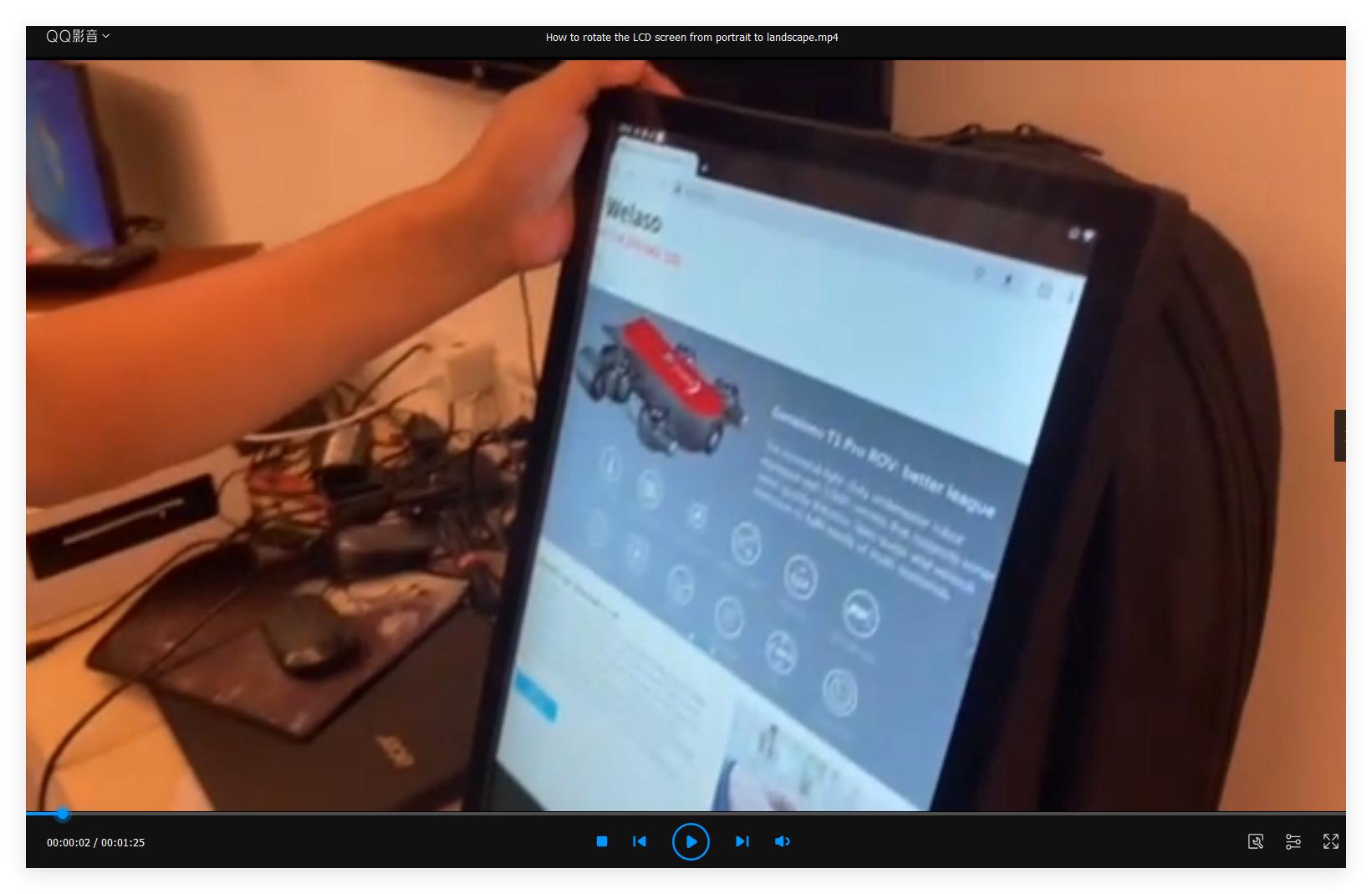
For a video demonstration of how to rotate the screen, please watch the video below.
Empty is not allow
E-mail format is incorrect
Empty is not allow






EMail:welaso.david@gmail.com
Mobile: +1 719 2701065 (US)
+86 13534050491 (China)

 (China)
 (US)
 Twitter
https://twitter.com/WelasoDavid
